
- In Cliniko: Settings → Data exports. Export six data sets, each from anytime to anytime.
- Email the files to admin@mananotes.co.nz and tell your account manager. Allow 2–3 business days.
- After exporting, stop entering data in Cliniko — and don’t add anything in ManaNotes until we confirm the import is done.
Export from Cliniko
You’ll need a Cliniko login that can export data — usually the practice owner or an administrator.
- 1Go to Settings → Data exports
In Cliniko, open Settings, then under Data & docs click Data exports.
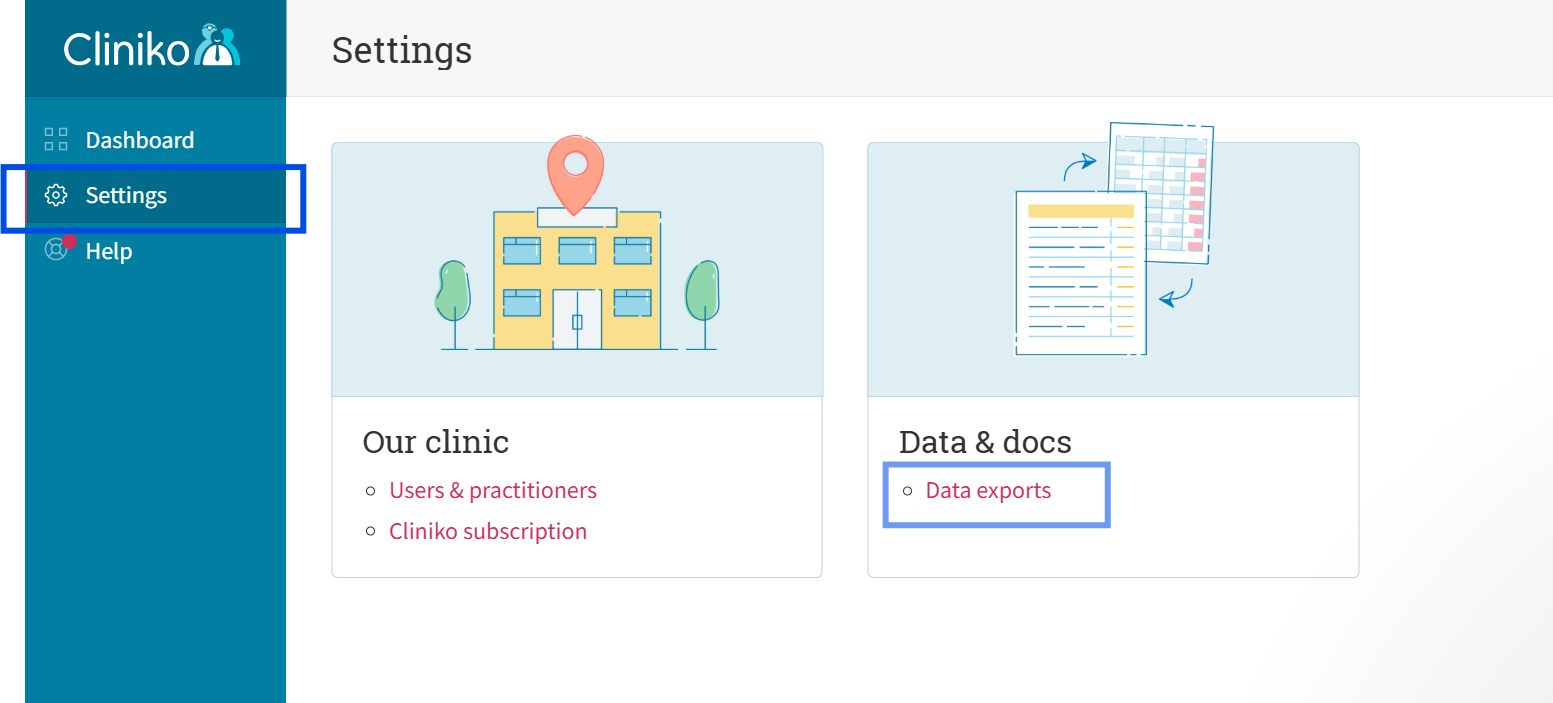
Cliniko — Settings → Data exports - 2Choose a data set
In the Data to export dropdown, pick one of the six below. You need all six — tick each one off once you’ve downloaded it.
0 of 6 done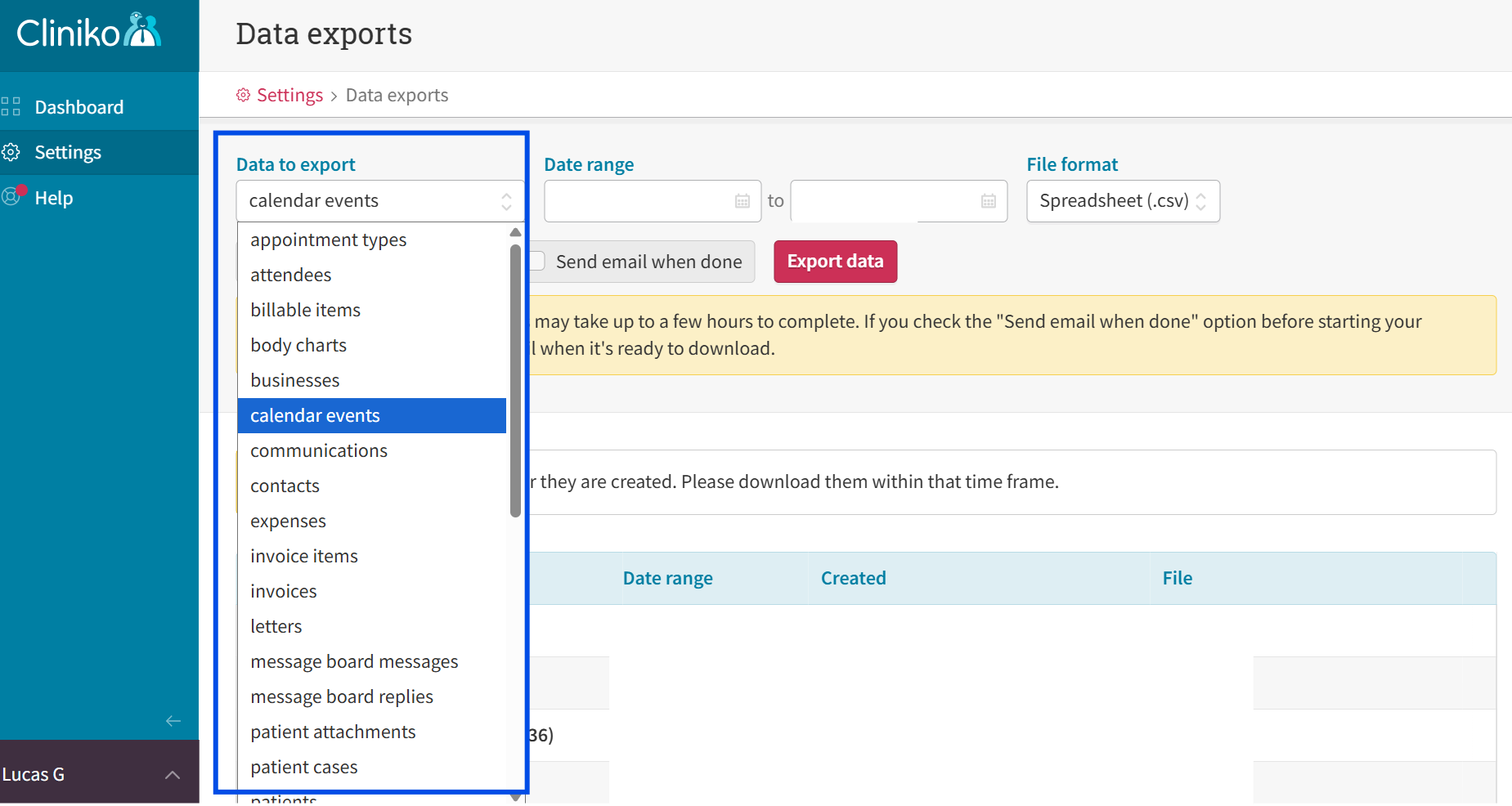
Cliniko — the Data to export dropdown - 3Set both dates to “Any time”
Click the first Date range box and choose Any time at the bottom of the calendar. Do the same for the second box, so the whole history comes across.
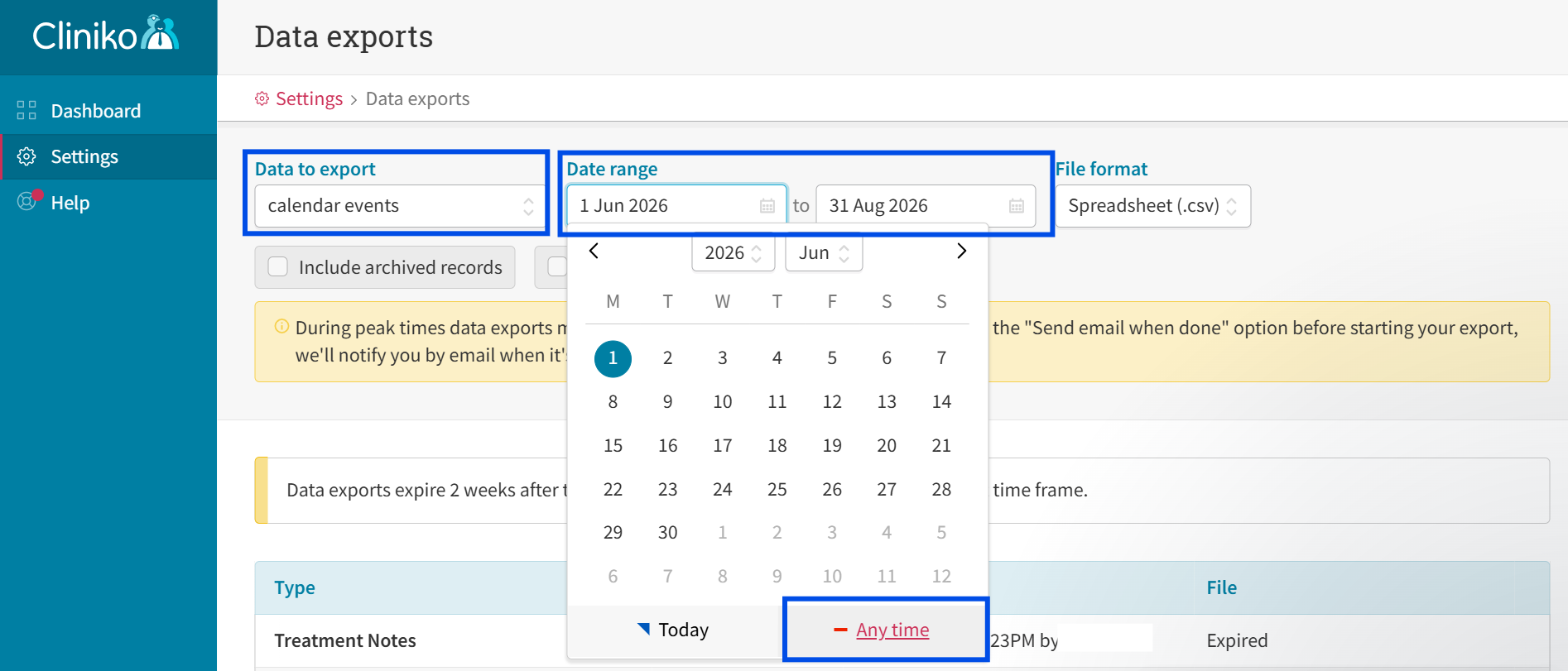
Cliniko — Any time at the bottom of the date picker - 4Export, download, repeat
Click Export data. When the file appears in the list below, click its name to download it. Then go back to step 2 for the next data set until all six are ticked. Exports expire after two weeks, so download them as you go.
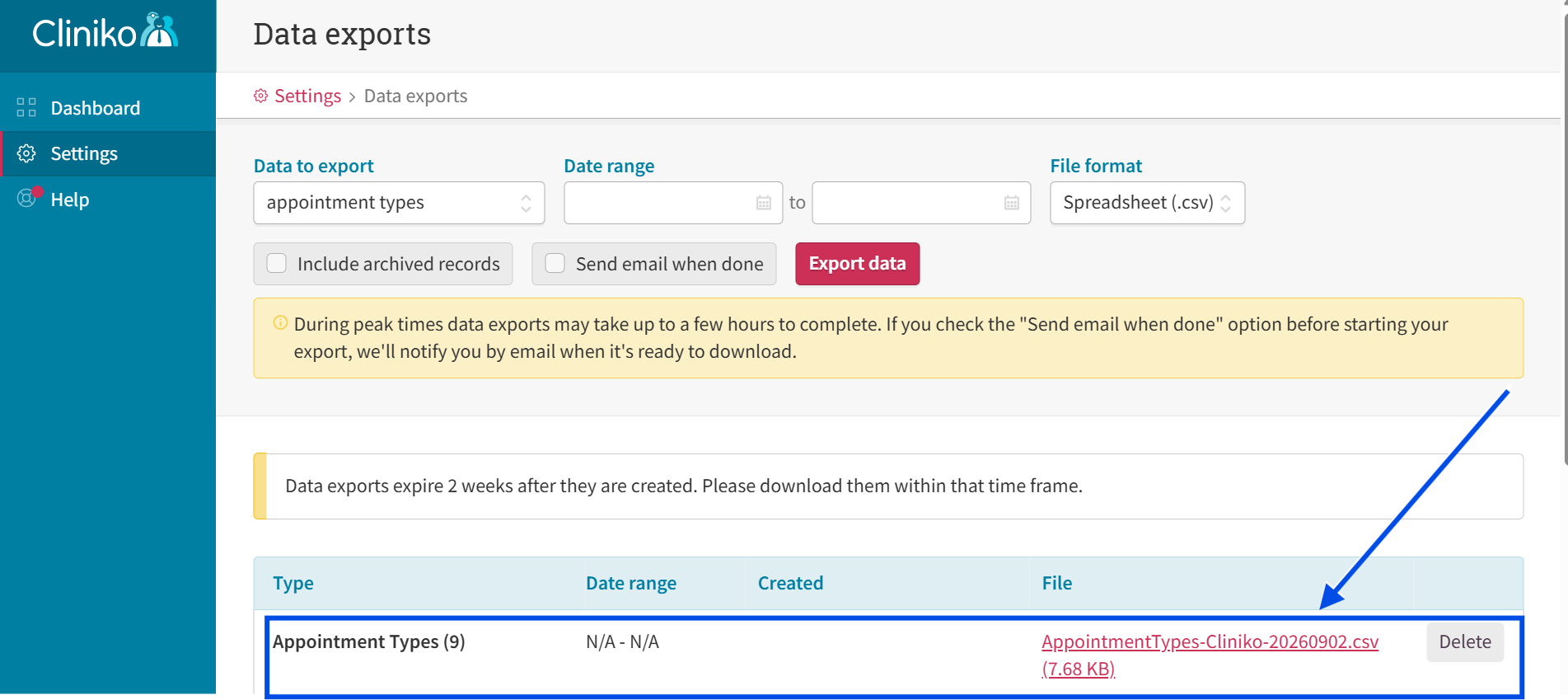
Cliniko — the finished export ready to download
Send the files to us
Email all six files to admin@mananotes.co.nz and let your account manager know they’re on the way. Migration usually takes 2–3 business days; your account manager will confirm when your data is live in ManaNotes.
When to do this
The export is a snapshot of Cliniko at the moment you run it. Pick a quiet moment — end of the day or end of the week works well — and keep these two things in mind: