
- Open Settings → All Settings → Practitioners and click a practitioner. Each tab covers one area.
- To change working hours: go to Locations & rosters, click Edit roster, set each day’s location, times and breaks, then click Save changes.
- The ACC & invoicing tab lists any required details still missing. A practitioner can’t bill ACC correctly until all of them are complete.
Managers set up each practitioner from one page. Go to Settings → All Settings → Practitioners and click the practitioner’s name. The header shows their name, status (for example Invited), home location, title, how many locations they work at and their email address. The settings are split across tabs: Profile, ACC & invoicing, Locations & rosters, Online booking, Scheduling and Access Control.
Update working hours (roster)
A practitioner’s regular working hours are set in their weekly roster. The booking page and the calendar use it to decide when and where the practitioner can be booked.
- 1Open the Locations & rosters tab
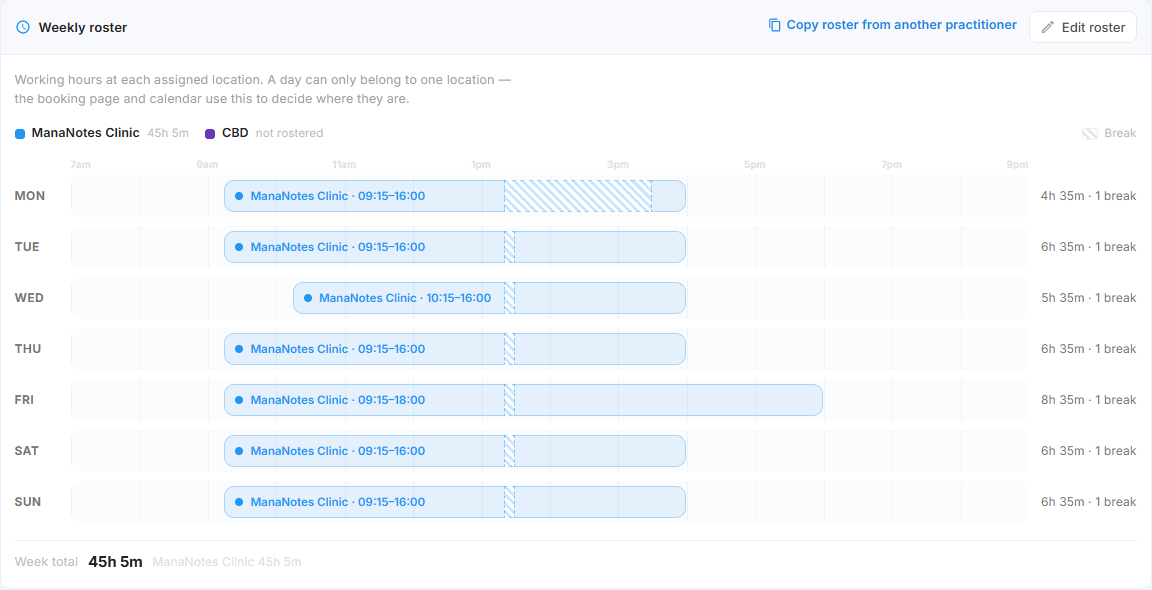
Open the practitioner and select Locations & rosters. The Weekly roster card shows each day as a bar on a timeline, with the hours and breaks for that day on the right.
- 2Click Edit roster
In the top right of the Weekly roster card, click Edit roster.
- 3Set each day
For each working day, choose the location and set the start and finish times. Add a break if they take one; breaks show as striped sections. A day can only belong to one location. Leave a day empty if they don’t work it.
- 4Check the totals and save
Check the hours for each day and the Week total at the bottom, with a breakdown per location. Then click Save changes.
Home location & where they work
The same tab controls which locations the practitioner can be booked at.
- 1Home location
Choose their base from the Home location dropdown. It’s used as the default when creating appointments, for grouping the calendar and in per-location reports. A practitioner always works at their home location, so changing it assigns them there automatically.
- 2Works at
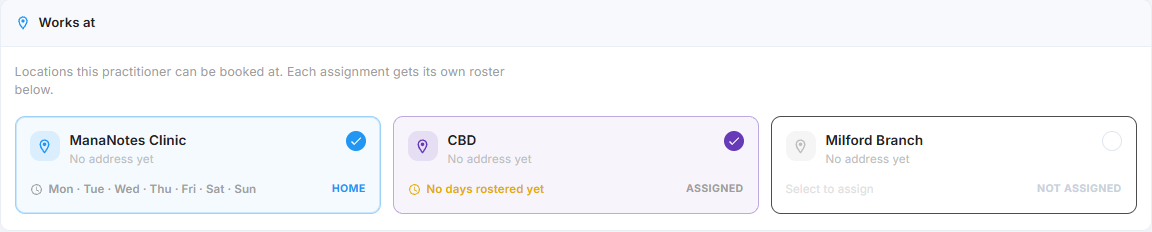
Click a location card to assign the practitioner to it, or click it again to remove them. Each card shows HOME, ASSIGNED or NOT ASSIGNED, and lists the days they’re rostered there.
- 3Roster the new location
A new location shows No days rostered yet until you give it days in the Weekly roster. Until then, the practitioner can’t be booked there.
Profile
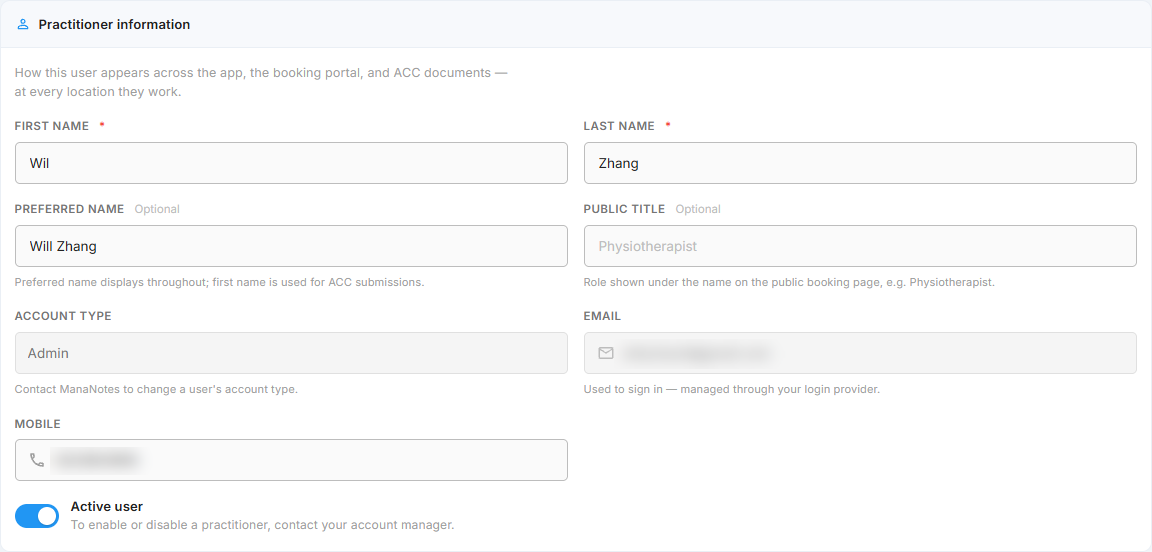
The Profile tab controls how the practitioner appears across the app, on the booking portal and on ACC documents, at every location they work.
- 1First & last name
Required. These are their legal names, and ACC submissions always use them, so they must match ACC’s register.
- 2Preferred name
Optional. If set, this name is shown everywhere in the app instead. It doesn’t change what’s sent to ACC.
- 3Public title
Optional. The role shown under their name on the public booking page, for example Physiotherapist.
- 4Mobile
Their contact number. You can edit it here.
ACC & invoicing
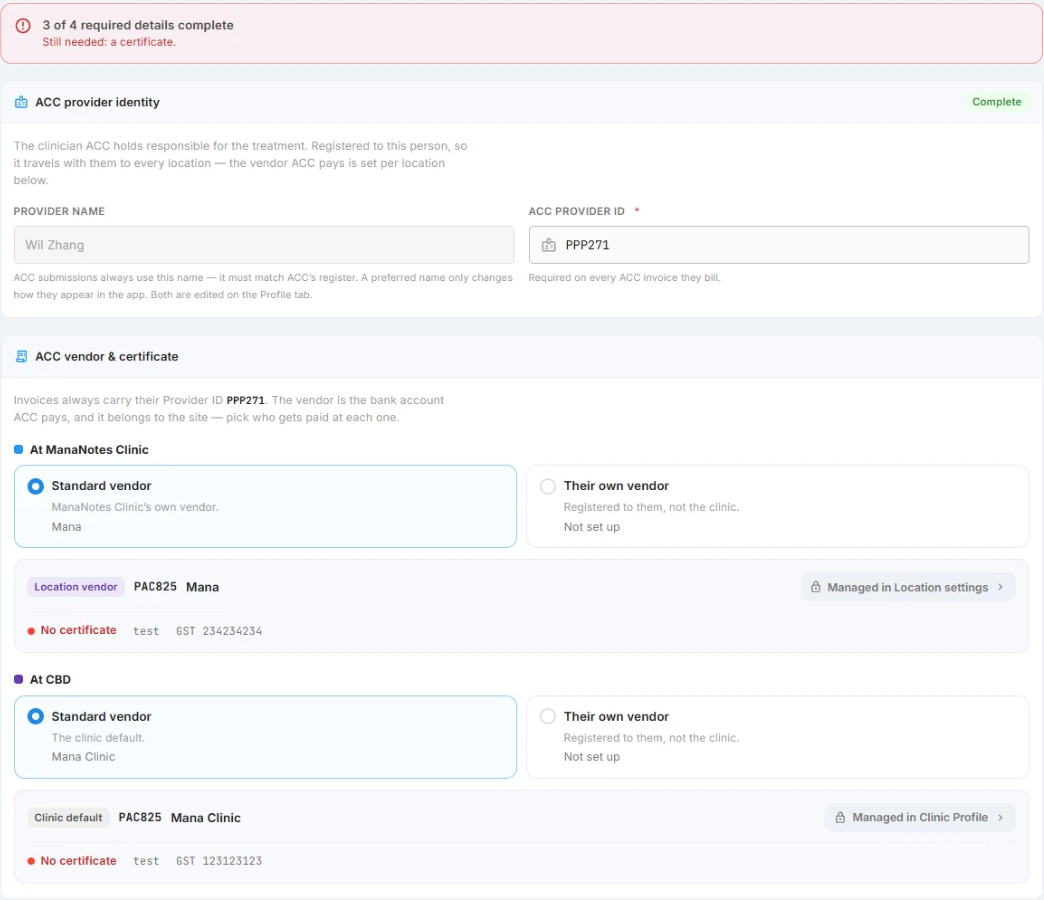
This tab holds everything ACC needs to pay for this practitioner’s work. A banner at the top shows progress, for example 3 of 4 required details complete. Still needed: a certificate. Work down the cards until each one is marked Complete.
- 1ACC provider identity
Enter their ACC Provider ID. It’s required on every ACC invoice they bill. The provider name comes from the first and last name on the Profile tab. The provider ID belongs to the person, so it applies at every location they work.
- 2ACC vendor & certificate
The vendor is the bank account ACC pays, and it’s set for each location. At each location, choose Standard vendor to use that location’s vendor (or the clinic default), or Their own vendor if the practitioner is registered as a vendor themselves. Location vendors are managed in Location settings, and the clinic default in Clinic Profile. A red No certificate label means that vendor still needs its ACC certificate.
- 3ACC service codes & billing
For each type of treatment they bill ACC for, choose the Provider type (for example Physiotherapy), their eligible Service codes (for example PHY3) and the Billing method (for example Time). The matching ACC contract and rate are filled in automatically. Use Add Provider Type if they bill under more than one. This card has its own Save Changes button.
- 4Invoicing preferences
Optional. Turn on Auto-generate ACC invoices to create a draft ACC invoice whenever one of their treatments is completed. Someone still reviews and submits it. The Default invoice note is printed at the bottom of every invoice they raise.
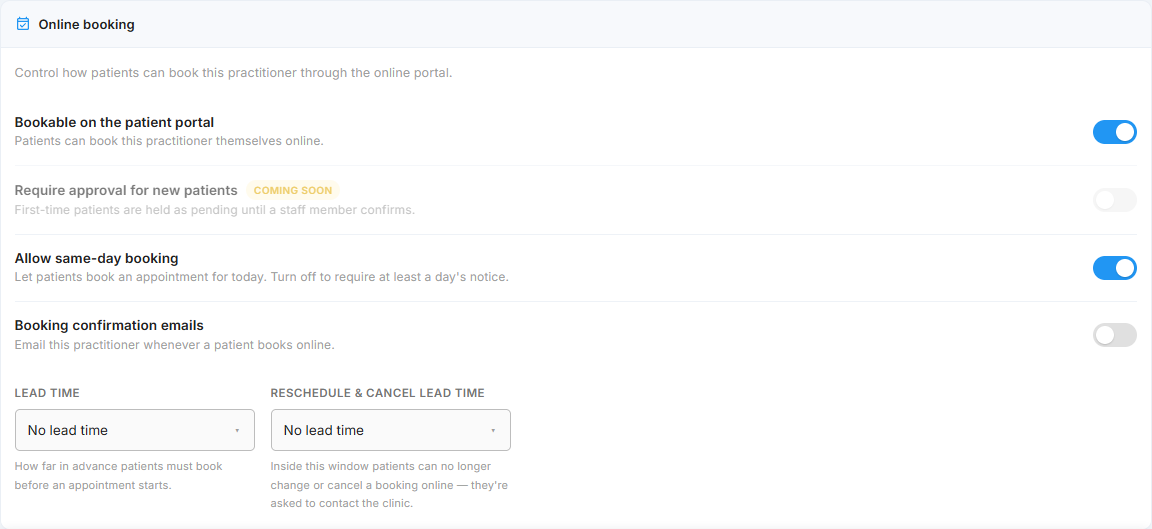
Online booking
The Online booking tab controls how patients can book this practitioner through the patient portal.
- 1Bookable on the patient portal
Turn this on to let patients book this practitioner online. Turn it off to hide them from the portal. Staff can still book them from the calendar.
- 2Allow same-day booking
Turn this on to let patients book an appointment for today. Turn it off to require at least a day’s notice.
- 3Booking confirmation emails
Turn this on to email the practitioner whenever a patient books them online.
- 4Lead time
How far in advance patients must book before an appointment starts. Choose No lead time to allow booking right up to the start time.
- 5Reschedule & cancel lead time
Inside this window, patients can no longer change or cancel a booking online. They’re asked to contact the clinic instead.
Frequently asked
Open the practitioner, go to Locations & rosters, click Edit roster, change the days and times, then click Save changes. For a one-off change such as leave, block the time out on the calendar instead.
Check three things: the location is ticked under Works at, the practitioner has days rostered there in the Weekly roster, and Bookable on the patient portal is on in the Online booking tab.
ACC submissions always use the first and last name, which must match ACC’s register. The preferred name only changes how they appear in ManaNotes.
Yes. The vendor is chosen per location on the ACC & invoicing tab. Their Provider ID stays the same everywhere.